Bustout
This is a game that is listed in the original Amstrad CPC 6128 user manual. Usually you'd have to type this in yourself, and then fix your typos. Lucky for you we've loaded it already and run it.
RUN"bustout
Try playing for a minute or two. When you're ready to get into the code, press the Escape key twice to break out of the program.
This game introduces colour, sound and some basic graphics, but you'll actually be able to read and understand quite a bit of it based upon what you already know. It's useful to be able to dive into code, reading just enough to gain some understanding, and then to be able to make changes.
Missions
- Change the game so you have 10 lives.
- Change the colour of the lines of bricks. Hint: you'll need to edit line 40.
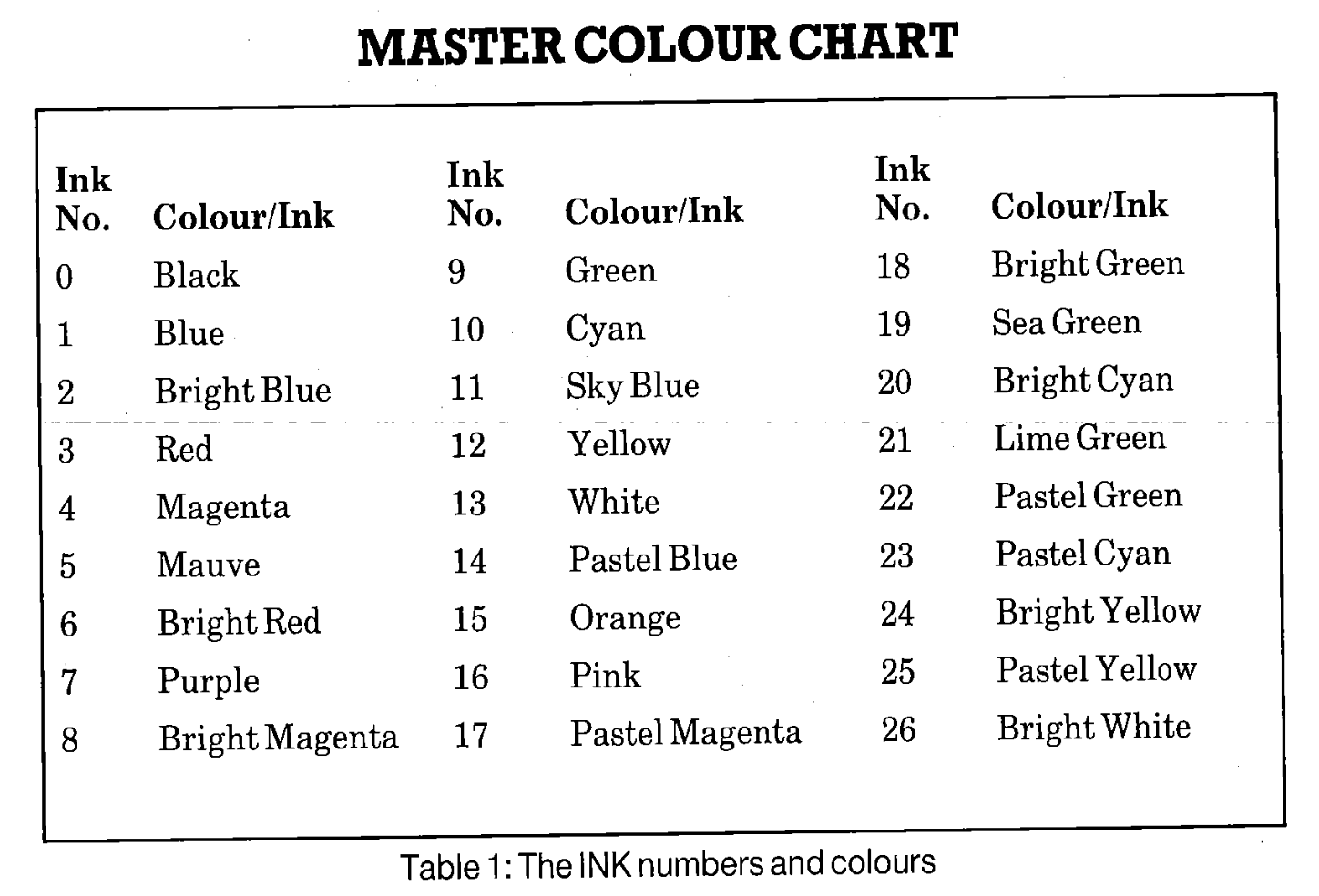
This computer has 16 different "inks" it can set, and 27 different colours it can set them to. The
INKcommand takes two numbers; the first is the the ink number to set, and the second is the colour to set it to. ThePENcommand chooses which "ink" colour to use.Check out the colour chart below for more detail and an example.
- Add an extra line of yellow bricks. Hint: look at lines 140 and 150 and try typing the commands on those lines one at a time to see what they do.
The
LOCATEcommand moves the cursor to the X, Y coordinate given.LOCATE 2,3moves the cursor to the 2nd column on the 3rd row of the screen. When you nextPRINTthis is where your text will appear. - Add two extra lines of the white bricks. Hint: look at line 160 and remember your loops!
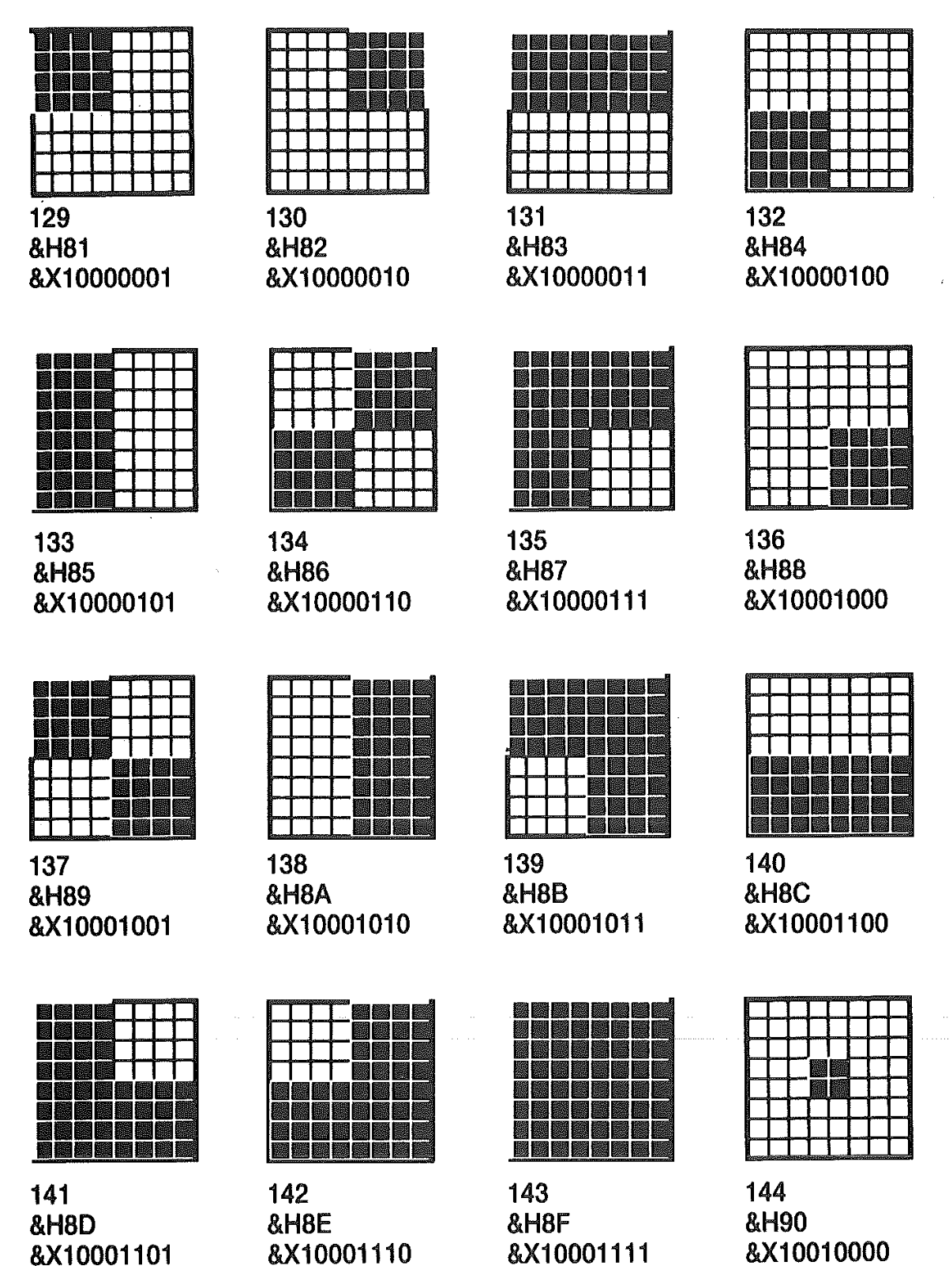
- Change the shape of the bricks to something else. Check out the graphics character set
below, and learn more about the
STRING$function. - Make your paddle wider. It's currently 4 characters wide, let's make it 8 characters wide. This mission will be split across multiple parts as we improve this change!
- Note that you can move your wider paddle too far to the right of the screen! Prevent your paddle from moving too far to the right.
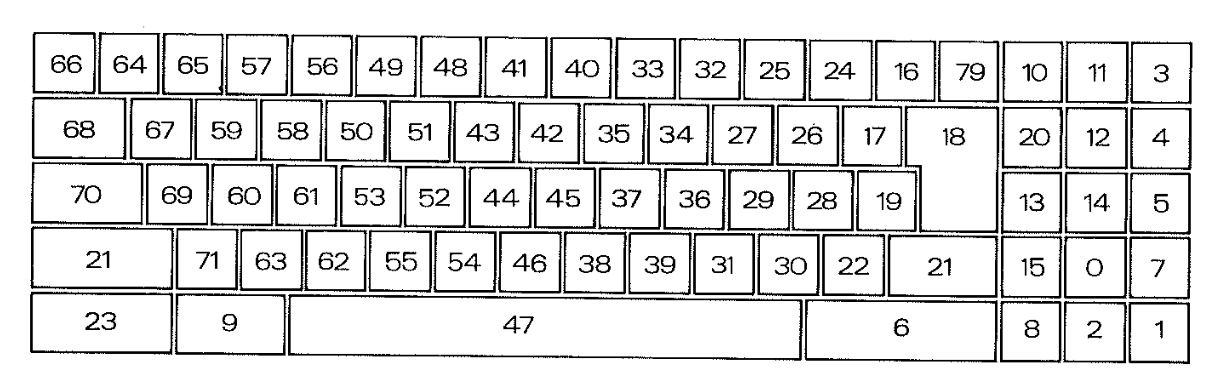
You will need to know the
INKEY(k)function. It takes a key code as an argument and returns 0 if that key is currently pressed. Take a look at the keyboard key codes chart.You will also need to understand what the
bxvariable is used for. You've already seen where the paddle is drawn (as you changed it in the previous mission), so take a look at howbxis used there. - Finally note that even though your paddle is wider, and no longer goes off the right edge of the screen, you still can't catch the ball on the right hand side of your paddle! The ball thinks your paddle is still 4 characters wide.
Tips
You are going to need to experiment with this code in order to achieve these missions. You’re going to need to try typing in parts of the code to see what it does. You’re going to need to try modifying the code to change things or remove things to see how the behaviour of the program changes.
You’re going to need to read this program and try to understand what it does. What does each variable do?
REM
If you add a REM command into a line of code, the rest of that line becomes a remark or a comment.
The computer ignores it. That's a handy way to remove a line of code without having to delete it (and then re-type it).
The apostrophe or ' is the same as REM. You can see the ' multiple times in the program
listing below, such as on line 10. On line 110 the developer has used it just to make visible space in the program.
Remember: everything after the REM or ' is ignored.
Let’s try quickly to use this trick. What does line 200 of this program do? Have a quick look at it below.
Now try EDIT 200 and add a ' at the beginning of the line. Now
run the program. Do you see the difference in behaviour? Edit the line again and remove the '.
Program listing
The game's program is listed below. You can also LIST it in the emulator, if you've already run it,
or after you've loaded it using LOAD"BUSTOUT.
10 'BUSTOUT by ALEXANDER MARTIN
20 'copyright (c) AMSOFT 1984
30 '
40 MODE 1:BORDER 1:INK 0,1:INK 1,26:INK 2,24:INK 3,6
50 SPEED KEY 15,2
60 ENV 1,1,18,0,11,0,10
70 ENT 1,10,2,2
80 ENV 3,1,0,16,5,-3,2
90 ENV 2,5,3,3,1,-21,22,9,-3,2
100 ENT -2,10,2,2,5,-7,1,2,11,3,2,-4,8
110 '
120 '
130 MOVE 30,32:DRAWR 0,400,1:MOVE 610,32:DRAWR 0,400,1
140 PEN 3:LOCATE 3,1:PRINT STRING$(36,143)
150 PEN 2:LOCATE 3,2:PRINT STRING$(36,143)
160 PEN 1:FOR r=5 TO 6:LOCATE 3,r:PRINT STRING$(36,143):NEXT r
170 bx=9
180 lives=5:score=0
190 PEN 1:GOSUB 680:CLEAR INPUT
200 IF INKEY$<>CHR$(32) AND JOY(0)<16 THEN 200
210 LOCATE 11,23:PRINT SPACE$(20):LOCATE 1,24:PRINT SPACE$(40);
220 GOSUB 690:GOSUB 660:GOTO 280
230 '
240 '
250 LOCATE bx,24:PRINT"  ";STRING$(4,131);"  ":RETURN
260 '
270 '
280 xa=1:ya=1:IF INT(RND*2)=1 THEN xa=-xa
290 PEN 1:GOSUB 250
300 ORIGIN 0,400
310 x=bx+4:y=11:x1=x:y1=y
320 '
330 '
340 x1=x+xa:y1=y+ya
350 IF x1=3 OR x1=38 THEN xa =-xa
360 GOSUB 540
370 IF y1=24 AND x1>bx+1 AND x1<bx+6 THEN ya=-ya:y1=y1-2:SOUND 130,44,8,7,1,1:a=((x>bx+5)OR(x<bx+2)):IF a=-1 THEN xa=xa*a:x1=x1+xa:y1=y1+1
380 IF y1=25 THEN LOCATE x,y:PRINT" ":GOTO 500
390 GOSUB 250
400 t=TEST((16*x1)-1,-(16*y1)-1)
410 IF t<>0 THEN ya=-ya:xz=x1:yz=y1:y1=y1+ya:GOSUB 590:IF t=2 THEN score=score+10:GOSUB 660
420 IF t=3 THEN score=score+20:GOSUB 660
430 IF t=1 THEN score=score+5:GOSUB 660
440 IF y1=1 THEN ya=1
450 LOCATE X,Y:PRINT " ": LOCATE x1,y1:PRINT CHR$(233):x=x1:y=y1
468 IF y=1 OR x=3 OR x=38 THEN SOUND 129,78,8,7,1,1
470 GOTO 340
480 '
490 '
500 lives=lives-1:SOUND 132,19,46,12,2,2:IF lives=0 THEN GOTO 620
510 GOSUB 660:GOTO 280
520 '
530 '
540 IF (INKEY(8)=0 OR INKEY(74)=0) AND bx>2 THEN bx=bx-2:RETURN
550 IF (INKEY(1)=0 OR INKEY(75)=0) AND bx<32 THEN bx=bx+2:RETURN
560 RETURN
570 '
580 '
590 LOCATE xz,yz:PRINT " ": RETURN
600 '
610 '
620 IF score>=hiscore THEN hiscore=score
630 GOSUB 660:score=0:lives=5:GOTO 130
640 '
650 '
660 SOUND 130,0,20,13,3,0,31:LOCATE 1,25:PRINT TAB(4)"HISCORE";hiscore;
670 LOCATE 18,25:PRINT"SCORE";score:LOCATE 30,25:PRINT"LIVES";lives:RETURN
680 LOCATE 11,23:PRINT"PRESS SPACE TO START":RETURN
690 LOCATE 1,25:PRINT SPACE$(40);:RETURN